

Manage all users across the various products in your network.
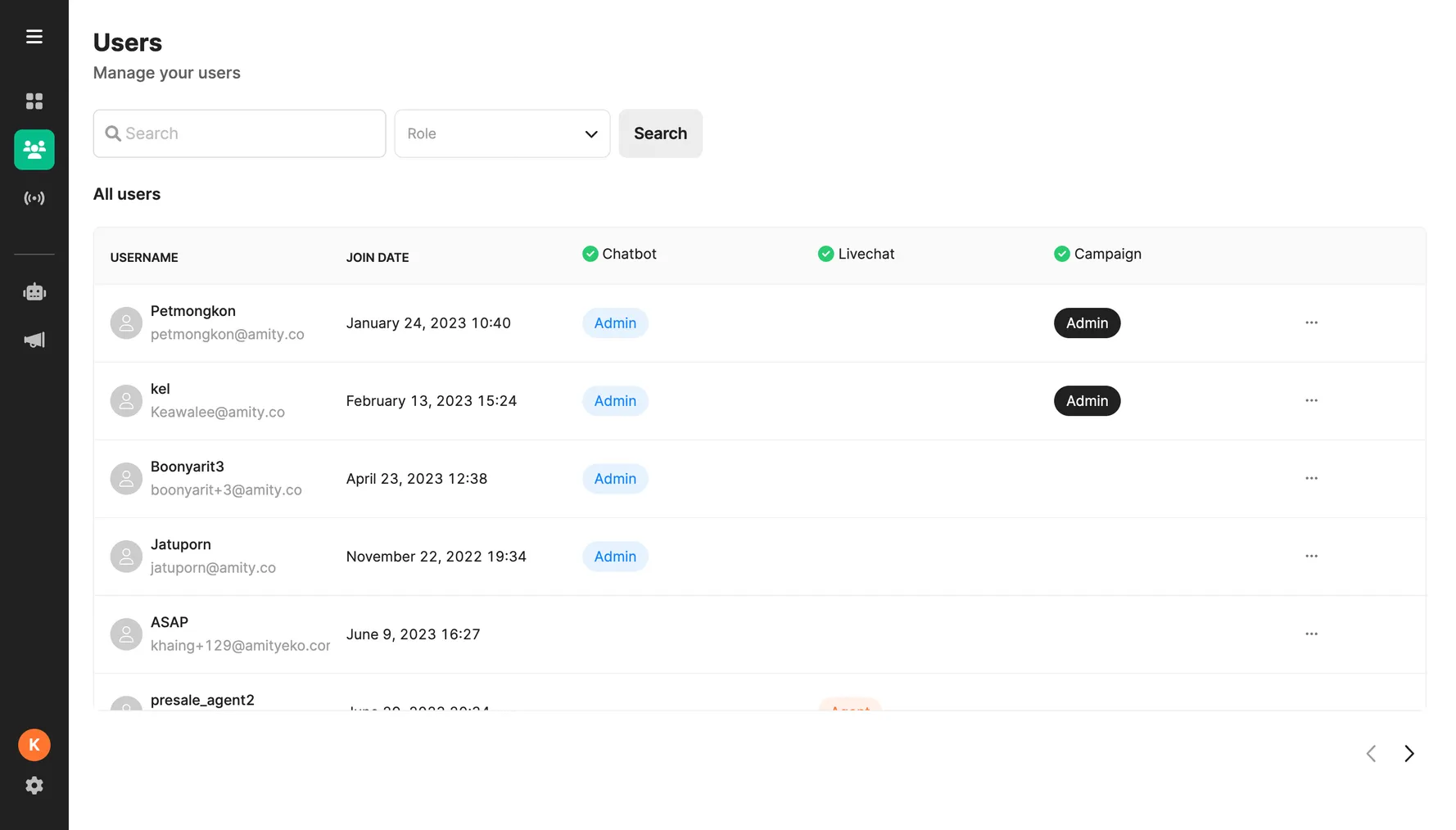
User List
Section titled “User List”The user list displays all members in the network, sorted by user ID.
- The Username column shows the name and email address.
- Join date shows when the user account was created.
- Products shows which products the user has access to - Chatbot, Campaign, Livechat.
To edit a user, click the 3-dot icon on the right side of their row. Here you can:
- Preview user details and roles.
- Edit roles and access for each product.
- Remove the user from the network.
Searching and Filtering
Section titled “Searching and Filtering”To search for a user, enter text in the search field. This will match on display name and email. Hit search to see results. Delete text to exit search and show all users again.
Filter by user role under the Products columns. You can select multiple roles. Hit search to apply filters.
Products:
Section titled “Products:”- Chatbot - Chatbot product access and roles.
- Campaign - Campaign product access and roles.
- Livechat - Livechat product access and roles.
- GenAI - GenAI product access and roles.
User Roles and Permissions
Section titled “User Roles and Permissions”The Amity Bots Platform uses specific roles to manage access to features across modules. Users can be assigned roles within each module to grant them capabilities based on their responsibilities.
Permissions for roles within different modules are as followed:
Chatbot Module
Section titled “Chatbot Module”| Permission | Chatbot Admin | Chatbot Developer | Chatbot Editor | Chatbot Moderator |
|---|---|---|---|---|
| Entity page | ✅ | ✅ | ✅ | ❌ |
| Intent page | ✅ | ✅ | ✅ | ❌ |
| Template page | ✅ | ✅ | ✅ | ❌ |
| Mapper page | ✅ | ✅ | ✅ | ❌ |
| Chatflow page | ✅ | ✅ | ✅ | ❌ |
| AI trainer | ✅ | ✅ | ❌ | ❌ |
| AI performance | ✅ | ✅ | ❌ | ❌ |
| Message template | ✅ | ✅ | ✅ | ❌ |
| Segmentation + audience | ✅ | ✅ | ✅ | ❌ |
| Rich menu | ✅ | ✅ | ❌ | ❌ |
| Deploy chatflow | ✅ | ✅ | ❌ | ❌ |
Campaign Module
Section titled “Campaign Module”| Permission | Campaign Admin | Campaign Editor | Campaign Moderator |
|---|---|---|---|
| Scheduler | ✅ | ✅ | ❌ |
| Segmentation + audience | ✅ | ✅ | ❌ |
| Message template | ✅ | ✅ | ❌ |
| Rich menu | ✅ | ❌ | ❌ |
| Chat ads | ✅ | ❌ | ❌ |
Live Chat Module
Section titled “Live Chat Module”| Permission | Livechat Admin | Livechat Supervisor | Livechat Agent |
|---|---|---|---|
| Auto assign setup | ✅ | ❌ | ❌ |
| Team management | ✅ | ✅ | ❌ |
| Team CRUD | ✅ | ✅ | ❌ |
| Add/Remove user to team | ✅ | ❌ | ❌ |
| Manually assign opened ticket | ✅ | ✅ | ❌ |
| Transfer ticket | ✅ | ✅ | ❌ |
| Export ticket reports | ✅ | ✅ | ❌ |
| View ticket history | ✅ | ✅ | ✅ |
| View all network tickets | ✅ | ❌ | ❌ |
| View team tickets | ✅ | ✅ | ✅ |
| Chat with users | ✅ | ❌ | ✅ |
| Add wrap up notes | ✅ | ✅ | ✅ |
| Close/resolve tickets | ✅ | ✅ | ✅ |
GenAI Module
Section titled “GenAI Module”| Permission | GenAI Admin | GenAI Developer |
|---|---|---|
| Chat Sandbox | ✅ | ✅ |
| Assistant CRUD | ✅ | ❌ |
| Fulfillment | ✅ | ❌ |
| Knowledge Base | ✅ | ❌ |
| AI Lab | ✅ | ❌ |
| Memorized Response | ✅ | ❌ |
Platform-Wide
Section titled “Platform-Wide”- CIM Admin: Full access to all platform capabilities.
Adding Users
Section titled “Adding Users”New users can be added through API or by contacting Amity Solutions Support team.
Editing Users
Section titled “Editing Users”To make edits, click the 3-dot icon on a user and select Edit. Here you can:
- Change the role for each product they have access to.
- Revoke access to specific products.
- Remove the user completely.
CIM admins can edit roles but not other CIM admins. This allows managing permissions while restricting the highest access level.
Was this page helpful?
Thank you for your feedback!