

Channels
Section titled “Channels”Channels allow you to connect your chatbot or live chat application to different messaging platforms like Facebook Messenger, LINE, web chat, etc. This enables engaging with users across multiple channels from one interface.
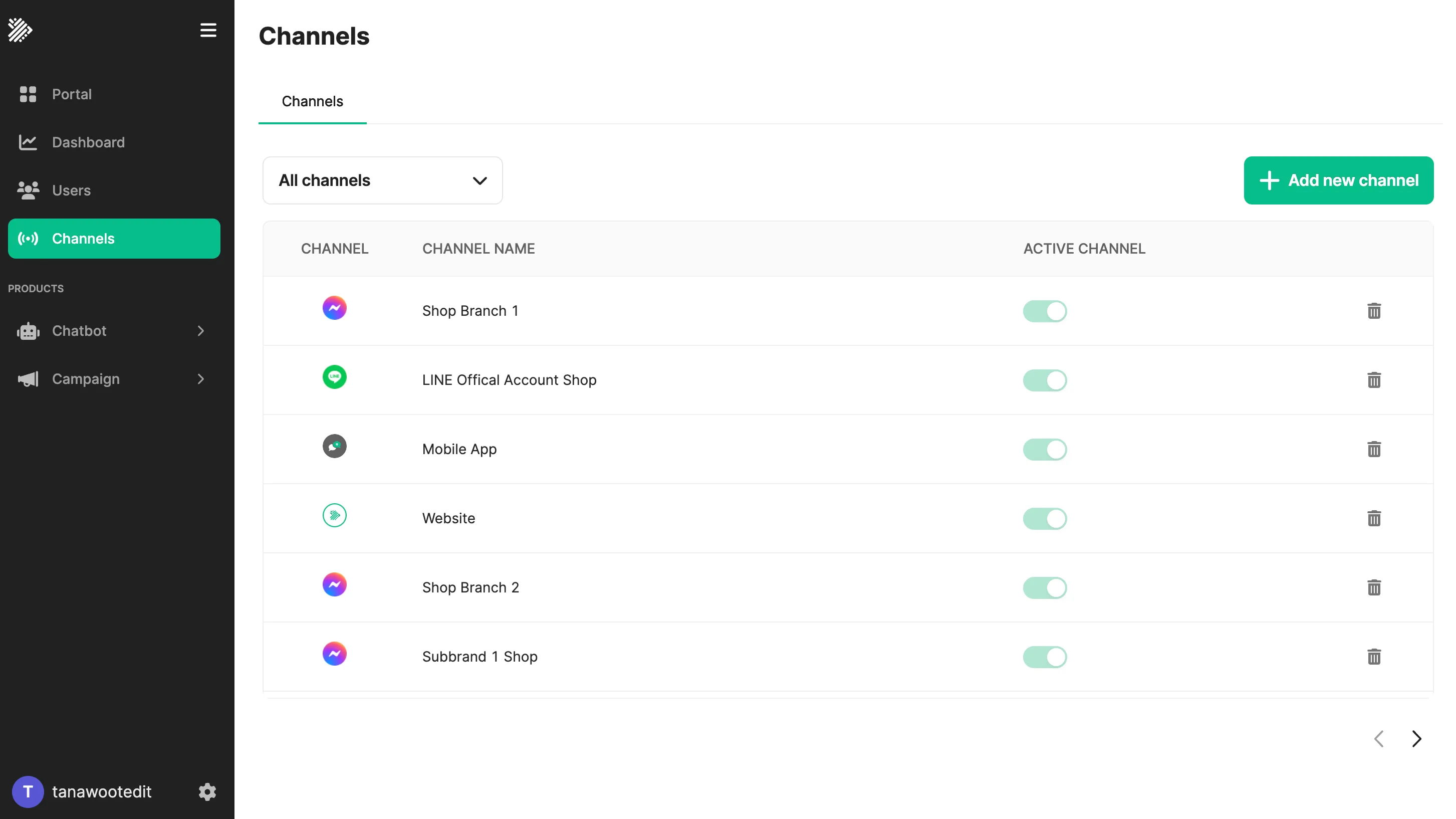
From the Channels page, you can add, manage, and delete integration channels.
Adding Channels
Section titled “Adding Channels”To add a new channel:
- Click the Add New Channel button.
- Select the channel type - Facebook, LINE, Webchat, Custom.
- Follow specific channel instruction:
- Click Connect and enable the channel.
Editing Channels
Section titled “Editing Channels”To edit an existing connected channel:
- Find the channel in the list.
- Click the edit icon for the channel.
- For Custom and Webchat channels you can regenerate or revoke API keys and tokens.
- Click Connect to save changes.
Note: Facebook and LINE channels cannot be edited after connecting.
Deleting Channels
Section titled “Deleting Channels”To remove a connected channel:
- Find the channel in the list.
- Click the delete icon.
- Confirm by clicking Delete.
This disconnects and removes the channel integration.
Filtering Channels
Section titled “Filtering Channels”Use the channel type filter to display only channels of a certain kind:
- LINE
- Webchat
- Custom
Click All Channels to again display the full list.
Was this page helpful?
Thank you for your feedback!